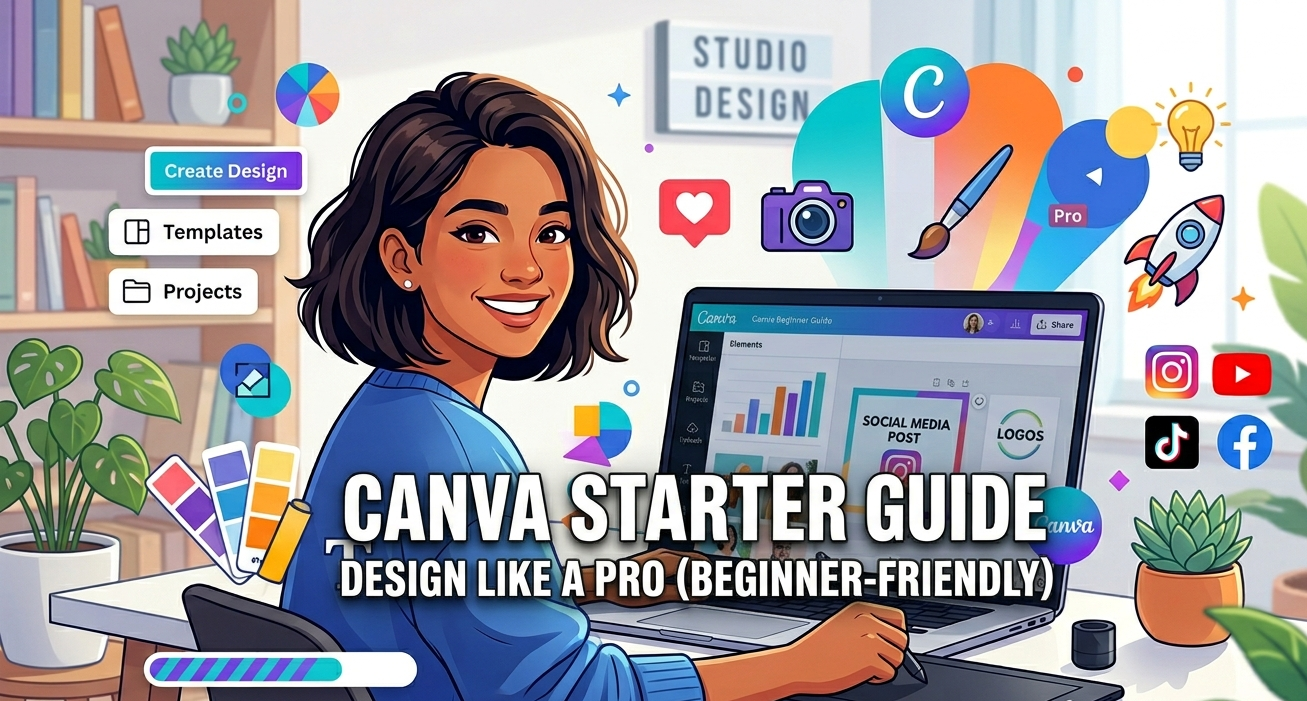
What is Canva?
Canva is a cloud-based design platform built for non-designers. It features an intuitive drag-and-drop interface alongside millions of pre-made templates.
With Canva, you can easily create:
- Social Media Assets: Instagram posts, TikTok layouts, and Facebook banners.
- Brand Identity: Professional logos, business cards, and letterheads.
- Digital Content: YouTube thumbnails, presentation slides, and ebook covers.
- Printables: High-quality posters, flyers, and event invitations.
💡 The Best Part: You don’t need to download heavy software, and you absolutely do not need prior design experience to get started.
Step-by-Step Guide: How to Use Canva
Step 1: Create Your Free Account
- Head over to Canva.com.
- Click the Sign Up button in the top right corner.
- Choose your preferred registration method: Google, Facebook, or your standard Email.
- Select account type “Personal” or “Small Business” depending on your immediate goals.
Step 2: Navigate the Dashboard
Once logged in, you will land on the main workspace. Here are the core features you need to know:
- Search Bar: Your main shortcut. Simply type what you want to create (e.g., “Pinterest Pin”).
- Create a Design: Located at the top right, this lets you set custom dimensions or choose standard formats.
- Templates: A dedicated library categorized by theme, industry, and platform.
- Projects: This is where all your saved drafts, completed designs, and uploaded folders live.
Pro Tip for Beginners: Don’t start from scratch. Always begin with a template to understand spacing and structure.
Step 3: Select Your Ideal Template
Use the search bar to find exact layouts tailored to your project. Some of the most popular searches include:
- “TikTok video”
- “YouTube thumbnail”
- “Instagram post”
- “Logo”
Canva will instantly populate thousands of ready-made designs. Click on any template that catches your eye to open the editing canvas.
Step 4: Master the Editing Canvas
Once your template is open, customizing it is as simple as clicking on an element:
- Text: Click any text box to type your own message, adjust font sizes, or change spacing.
- Colors: Click an element or background, then use the color picker to match your brand palette.
- Images: Drag and drop your own images onto the canvas, or pull from Canva’s massive media library.
- Fonts: Browse hundreds of typography styles to find the look that fits your project vibe.
Step 5: Leverage the Left Toolbar
The left-hand panel is your design toolbox. It holds everything you need to enhance your project:
- Elements: Access high-quality icons, geometric shapes, graphics, and frames for your images.
- Uploads: Import your own photos, logos, and video clips here.
- Text: Drop in pre-formatted font combinations, headings, or subheadings.
- Styles: Instantly apply pre-set, matching color and font combinations to your entire design with one click.
Step 6: Export and Download Your Work
Once you are happy with your creation, it is time to export:
- Click the Share button in the top right corner.
- Select Download from the dropdown menu.
- Choose the optimal file format based on your needs:
| File Format | Best Used For |
| PNG | High-quality web images (best for blogs & social media) |
| JPG | Smaller file sizes (ideal for fast website loading) |
| MP4 | Videos and animated graphics (TikTok, Reels, Shorts) |
| PDF Standard | Multi-page documents, resumes, and digital guides |
🚀 4 Proven Ways to Make Money Using Canva
Canva isn’t just a productivity tool—it’s a digital asset that can generate revenue. Here are the top monetization strategies:
1. Sell Digital Templates
Many creators and business owners don’t have time to design their own layouts from scratch. You can design high-converting Instagram grids, Pinterest templates, or ebook layouts on Canva and sell them as editable links on platforms like Etsy or your own online store.
2. Freelancing Services
Platforms like Fiverr and Upwork have a massive demand for quick digital assets. You can offer services such as:
- Custom YouTube thumbnail creation.
- Podcast cover art.
- Social media scheduling graphics.
3. Content Creation & Affiliate Marketing
Use Canva to fuel your own platforms. Create viral TikTok videos, high-click-through YouTube thumbnails, and engaging blog graphics to grow your audience, boost traffic, and scale your affiliate marketing revenue.
4. Print-on-Demand (POD)
Design unique graphics, quotes, or minimalist art on Canva and upload them to print-on-demand sites like Redbubble, Printify, or Teespring. Turn your designs into tangible goods like:
- T-shirts and hoodies
- Coffee mugs
- Custom stickers
🎨 Professional Tips for Better Designs
To prevent your work from looking amateurish, stick to these core graphic design principles:
- Limit Your Palette: Stick to a maximum of 2–3 colors. Too many colors dilute your visual message.
- Simplify Typography: Use 1–2 fonts max. Pair a bold heading font with a highly legible body font.
- Prioritize Alignment: Use Canva’s built-in gridlines to ensure your text and icons align correctly.
- Embrace Negative Space: Don’t overcrowd the canvas. Give your elements room to “breathe” to look professional and clean.
⚡ Level Up Fast: Canva Pro Workflow
If you want to accelerate your output, consider these advanced workflow hacks:
- Set Up Your Brand Kit: Save your brand’s specific logos, hex codes, and fonts in one place so they are instantly accessible on every new project.
- Repurpose Content: Convert a single Instagram post into a Pinterest Pin or a TikTok background with a few quick adjustments to maximize your content distribution.
- Track Visual Trends: Regularly audit trending styles on short-form video platforms and use Canva’s latest text effects to keep your content fresh and engaging.
Final Advice
The secret to mastering graphic design is simple: Start basic and stay consistent. Every project you create will sharpen your eye for layout, color theory, and branding.
Frequently Asked Questions (FAQ)
Is Canva completely free?
Yes! Canva offers a highly functional free tier that includes thousands of free templates, shapes, and fonts. They also offer a premium subscription (Canva Pro) for advanced tools like one-click background removal and the complete Brand Kit.
Can I use Canva designs for commercial use?
Yes. You can use your designs for commercial purposes (like marketing materials, digital products, and social media) as long as you follow Canva’s licensing agreements, especially regarding unmodified stock media.
Drop a comment below: What is the first project you plan on designing with Canva?